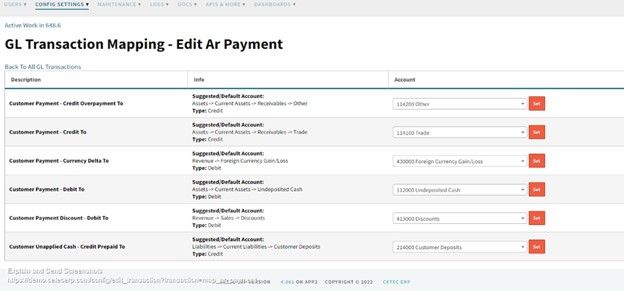
If AR payments are hitting the wrong accounts, it usually traces back to how the AR Payment GL Transaction Mapping is set up, and how you are using applied payments, order prepayments, and unapplied cash. In manufacturing, these postings matter because they control how cash, AR, and customer prepayments show up on the balance sheet.
Below is a practical walkthrough of where to review the AR payment mapping in Cetec ERP and what the ledger impact looks like for the common payment scenarios.
Where to Review AR Payment GL Transaction Mappings
In Cetec ERP, go to Admin, then Config Settings, then GL Transaction Mapping. From there, open Edit AR Payment. This is where you control which accounts are used when an AR payment is applied, moved into unapplied cash, or created from an order prepayment.

Ledger Impacts for Common AR Payment Scenarios
Once the mapping is set, the posting behavior depends on what kind of payment you are recording and whether it is applied to an invoice or held as unapplied cash. Use the scenarios below to validate that your balance sheet accounts are moving the way your team expects.
- AR payment applied to invoices or credit memos: DR Undeposited Cash; CR Trade AR.
- AR payment recorded into unapplied cash: DR Undeposited Cash; CR Other Receivables (Contra AR).
- When unapplied cash is created from that payment: DR Other Receivables (Contra AR); CR Sales Prepayments (Liability).
- Order prepayment recorded as an AR payment: DR Undeposited Cash; CR Other Receivables (Contra AR).
- When the order prepayment creates an unapplied cash item: DR Other Receivables (Contra AR); CR Sales Prepayments (Liability).
- Deposit of funds to the bank (applies to the scenarios above): DR Bank Checking Account; CR Undeposited Cash.
Handling Order Prepayments After Un-Invoicing
If an invoice had a payment automatically applied from an order prepayment and that invoice is later un-invoiced, the related payment can be reopened and the link to the unapplied cash item can be lost because the original unapplied cash item is canceled. When this happens, zero out the payment, create a new prepay against the order to generate a new linked unapplied cash item, then re-invoice the order so the prepayment can auto-apply again.
Key Takeaways
- Verify AR payment behavior in Admin, Config Settings, GL Transaction Mapping, then Edit AR Payment.
- Applied payments typically move between Undeposited Cash and Trade AR.
- Unapplied cash and order prepayments typically route through Other Receivables (Contra AR) and Sales Prepayments (Liability).
- Deposits move funds from Undeposited Cash into the bank account.
- If you un-invoice an order tied to a prepayment, you may need to recreate the prepay to restore the link to a valid unapplied cash item.
Conclusion
AR payment mapping is a small configuration that carries real consequences for how cash, AR, and customer prepayments appear in your books. When your team can trace each payment type to its debits and credits, you can catch mis-postings quickly and keep unapplied cash and prepayments from drifting out of sync with invoices.