
If you handle a high volume of small shipments, printing packing slips one order at a time slows down your warehouse. Every extra click in the middle of a busy pick-and-pack window increases the risk of delays and missed shipments.
Cetec ERP includes a batch printing workflow for packing slips so your team can filter a group of orders, select the ones to move, and print all of the related slips in a single run.
Open the Release Orders Page
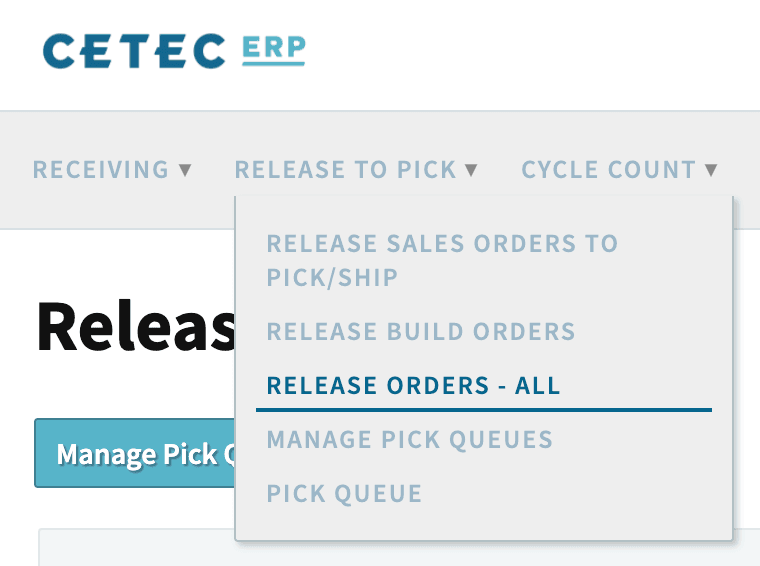
To start, go to the Warehouse tab, open Release to Pick, and choose Release Orders - All. This page lists the orders that are ready to be picked and shipped and serves as the control center for batch printing packing slips.
Filter the Orders for This Batch
On the Release Orders - All page, use the search criteria to narrow the list of orders whose packing slips you want to print. You can filter by work date, ship date, dock date, workflow stage, and whether the order is internal or external. Once your filters are set, click Submit to generate the list of candidate orders.
Use the Move Column to Select Orders
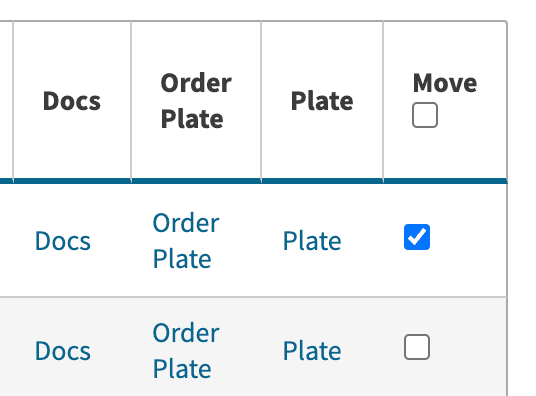
In the results list, look for the Move column on the far right. This column has a checkbox in the header and a checkbox for each order line. If you do not see the Move column, click the +/- Columns link above the list and set the Move column to Show so you can work with it.
Use the checkboxes in the Move column to select the orders you want in this packing slip batch. You can select individual orders or use the header checkbox to select all visible orders that match your filter.
Run the Batch Print for Packing Slips
After you have selected the appropriate orders in the Move column, go back to the search options at the top of the page. In the Batch Print dropdown, choose Packing Slip, then click the Batch Print button to generate the set of packing slips for the selected orders.

Cetec ERP opens a page containing the full set of packing slips for the orders you selected. From there, you can send the slips to a printer so each shipment has a clear, consistent document included with the packed goods.
Key Takeaways
- Use the Release Orders - All screen in Cetec ERP as the starting point for batch printing packing slips.
- Apply filters to narrow orders for a specific work, ship, or dock date and then select them using the Move column checkboxes.
- Choose Packing Slip from the Batch Print dropdown to print all selected slips in one step instead of one by one.
- Batch printing reduces manual work for shipping staff and helps keep distribution activity moving on tight schedules.
Conclusion
Batch printing packing slips in Cetec ERP turns a repetitive, order-by-order task into a single controlled step. By selecting orders from the Release Orders - All screen and running a batch print, your warehouse team can support higher shipping volume with less manual effort and more consistent paperwork.