
Quoting teams often need a fast way to answer basic operational questions: Which quotes are open, which were created in a specific time window, and who owns follow-up. In Cetec ERP, the Quote List report is the quickest place to pull that view and adjust it without exporting to a spreadsheet.
A clean Quote List workflow helps you keep quoting follow-up organized, report on quoting activity, and avoid missing quotes that should have moved forward or been closed.
Open the Quote List Report
To access the report, go to Sales, then Quotes, then select Quote List from the dropdown. This opens the Quote List report screen where you can set filters and submit your search.
Filter Quotes by Date Range
Use the Date fields at the top of the report to control which quotes are returned.
If you enter a date only in the From field, Cetec ERP searches for quotes starting on that date through today. If you enter both From and To, Cetec ERP searches for quotes within and including those dates. If you enter a date only in the To field, Cetec ERP searches for quotes up to and including that date.

Filter Quotes by Owner
If you need to see quotes created or managed by a specific person, use the Owned By dropdown to select the user. This is useful for personal follow-up queues, manager review, and basic quoting accountability.

Show Quote Totals and Other Columns
After you run the report, you can adjust what the report shows by adding or removing columns. If you need to see the total amount for each quote, use the +/- Columns option at the top of the report.
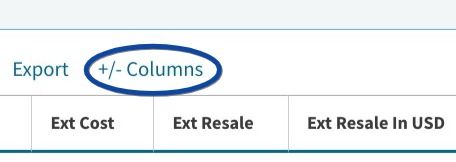
In the columns window, choose which fields to show or hide. Select Show next to Quote Total, then close the window to return to the report with the additional column visible.
If you need a slightly different view, change the fields in the header and submit again, or adjust columns to display different data. The practical rule is to set filters first to control which quotes you are looking at, then add columns to answer the specific question you are trying to report on.
Key Takeaways
- Use the Date fields to control whether you are seeing quotes from a single start date, a bounded range, or everything up to a cutoff date.
- Use Owned By to narrow the report to a specific quoting owner for follow-up and review.
- Use +/- Columns to add Quote Total and other fields without changing the underlying report.
- Filter first, then adjust columns to match the question you need to answer.
Conclusion
The Quote List report in Cetec ERP is a quick operational view into quoting activity. When you use date filters, ownership filters, and the column selector together, your team can run consistent follow-up and report on quoting without rebuilding the report each time.