Accounting teams need a clear picture of expected cash movement to make daily decisions about payments, purchasing, and collections. The Executive Dashboard in Cetec ERP includes Weekly Cash-In and Weekly Cash-Out widgets that give you a simple view of near-term deposits and disbursements based on live AR and AP data.
This article walks through how to access these widgets, how they calculate values from invoices and purchase orders, and how you can use them to support short-term cash planning.
Accessing the Weekly Cash-In and Cash-Out Widgets
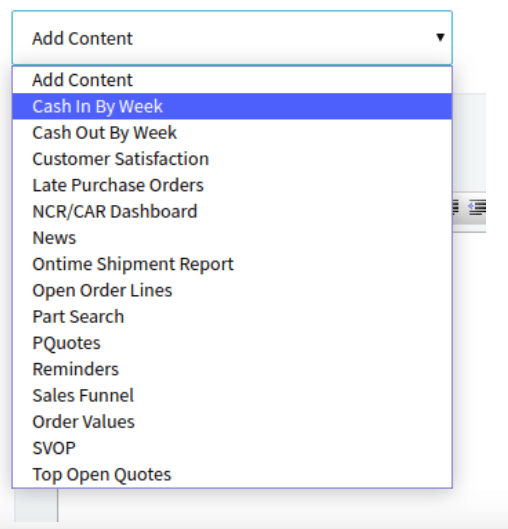
To add the Weekly Cash-In and Weekly Cash-Out widgets, start from the Executive Dashboard in Cetec ERP. You can reach it by clicking the Cetec ERP logo in the top left of the screen or by going to Admin, then Dashboard, then Executive Dashboard. At the bottom of the dashboard, below your existing widgets, you will see an Add Content dropdown where you can select and add both cash widgets.

How Weekly Cash-In Works
The Weekly Cash-In widget looks at open AR invoices and uses their due dates to project when cash is expected to come into your business. For each week, Cetec ERP totals invoice amounts that are due in that period and that are tied to G/L accounts flagged as cash accounts. This produces a weekly view of expected deposits from customers based on real invoice data.
Because the widget is driven by invoice due dates, tightening up due date accuracy and collections activity directly improves the quality of this forecast. When your team reviews the dashboard, they see which weeks are likely to have strong collections and which weeks may require closer attention to outstanding AR.

How Weekly Cash-Out Works
The Weekly Cash-Out widget focuses on upcoming payments. It looks at purchase orders and uses the estimated pay date on each PO to group expected disbursements by week. Cetec ERP then sums payments that will hit G/L accounts flagged as cash accounts, giving you a weekly view of money scheduled to leave the business.
This view helps you see when large supplier payments, freight charges, or other cash expenses are concentrated. If a particular week shows a heavy outflow, you can adjust payment timing, follow up on incoming AR, or plan financing before the issue reaches your bank account.

Using the Dashboard for Short-Term Cash Planning
Once both widgets are in place, the Executive Dashboard becomes a quick reference for short-term cash planning. Leadership and accounting can review upcoming weeks at a glance, compare expected inflows to outflows, and decide whether to hold, accelerate, or delay specific payments. Because the widgets read directly from invoices, POs, and cash accounts, the view stays tied to actual transactional data instead of a separate spreadsheet.
This approach supports more accurate conversations with ownership and management about liquidity. Rather than asking for a rough cash estimate, they can see how current orders, invoices, and purchasing decisions are expected to affect the bank balance in the coming weeks.
Key Takeaways
- Weekly Cash-In uses invoice due dates on AR and cash accounts to show expected customer deposits by week.
- Weekly Cash-Out uses estimated pay dates on purchase orders and cash accounts to show upcoming payments by week.
- Both widgets live on the Executive Dashboard in Cetec ERP and pull directly from live transactional data.
- Reviewing cash in and cash out together helps your team plan payment timing, collections, and funding decisions with greater confidence.
Conclusion
Weekly Cash-In and Cash-Out widgets turn the Executive Dashboard in Cetec ERP into a practical cash planning tool. By basing the view on invoice due dates, PO pay dates, and cash account activity, your accounting team can maintain an accurate picture of near-term cash movement and support better operational decisions around spending and collections.