It is common to adjust a BOM while you are building a quote, especially when engineering is iterating and sales needs an accurate roll-up for pricing. The risk is simple: if changes live only in a worksheet, the quote and the permanent BOM can drift, and your team loses track of what was actually quoted versus what was actually engineered.
Cetec ERP supports this workflow with a BOM worksheet tied to the quote or order line. On the Quote/Order Worksheet screen, there are four buttons that control where data is pulled from and where it is pushed to. We will also detail out the other buttons on the screen and their functions.
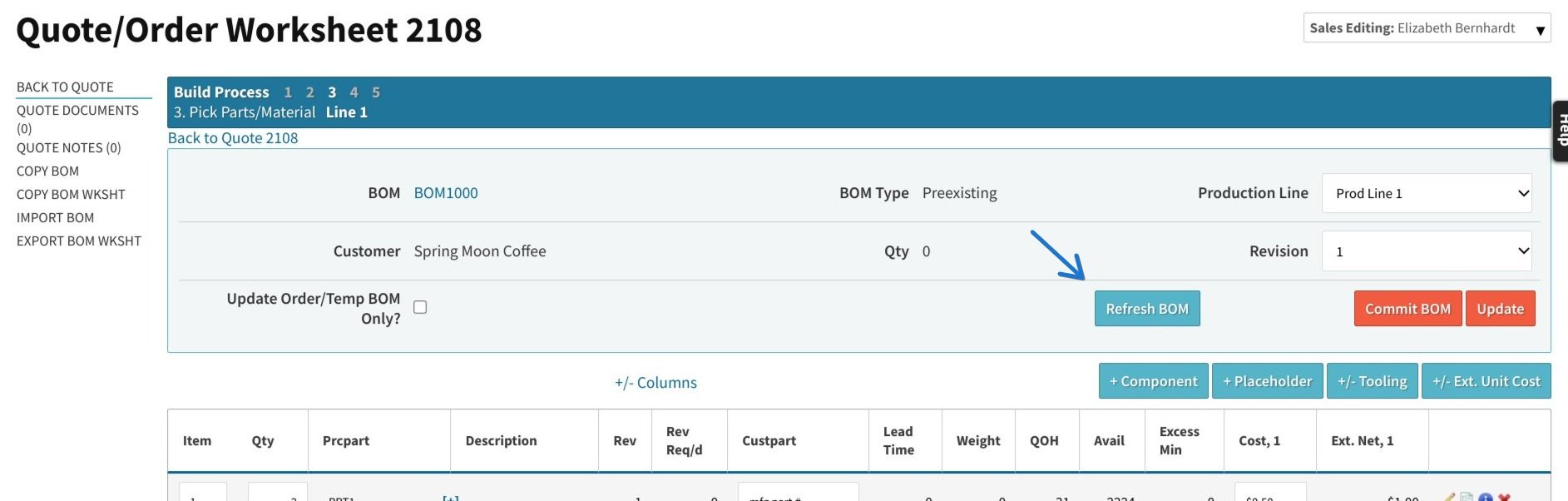
Refresh BOM
Refresh BOM pulls data from the permanent BOM into the temporary BOM worksheet. Use this when you want the worksheet to match the current saved BOM before you start making quote-specific edits.
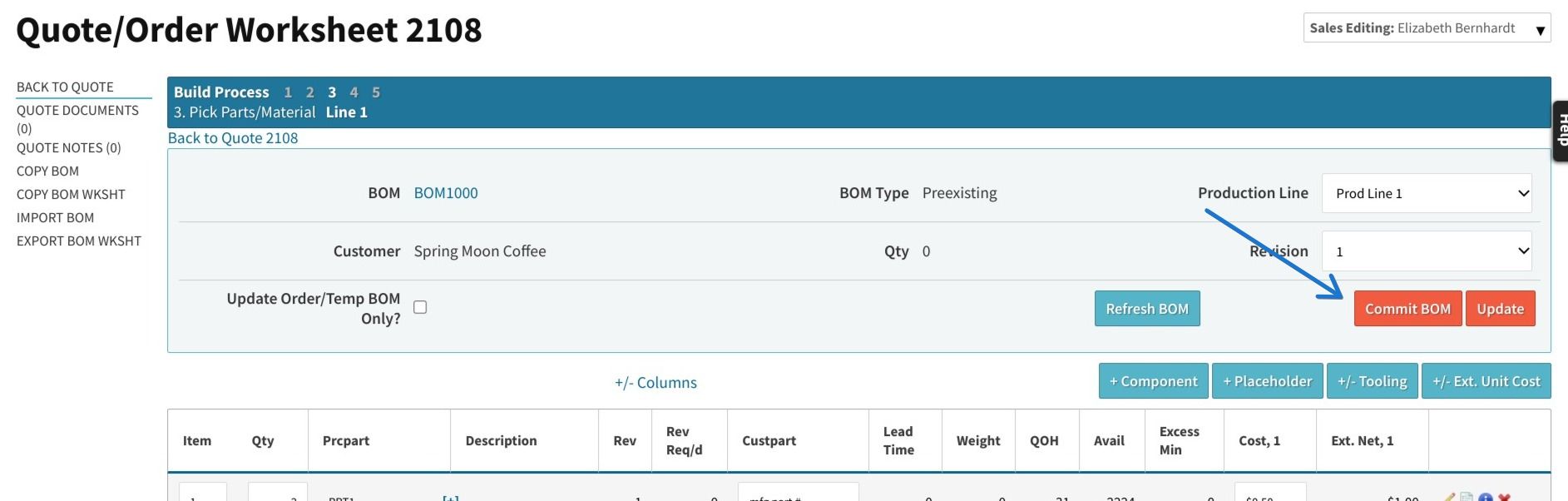
Commit BOM
Commit BOM pushes data from the temporary BOM worksheet back into the permanent BOM. Use this when the worksheet changes should become the saved engineering record, not just a quote-line experiment.
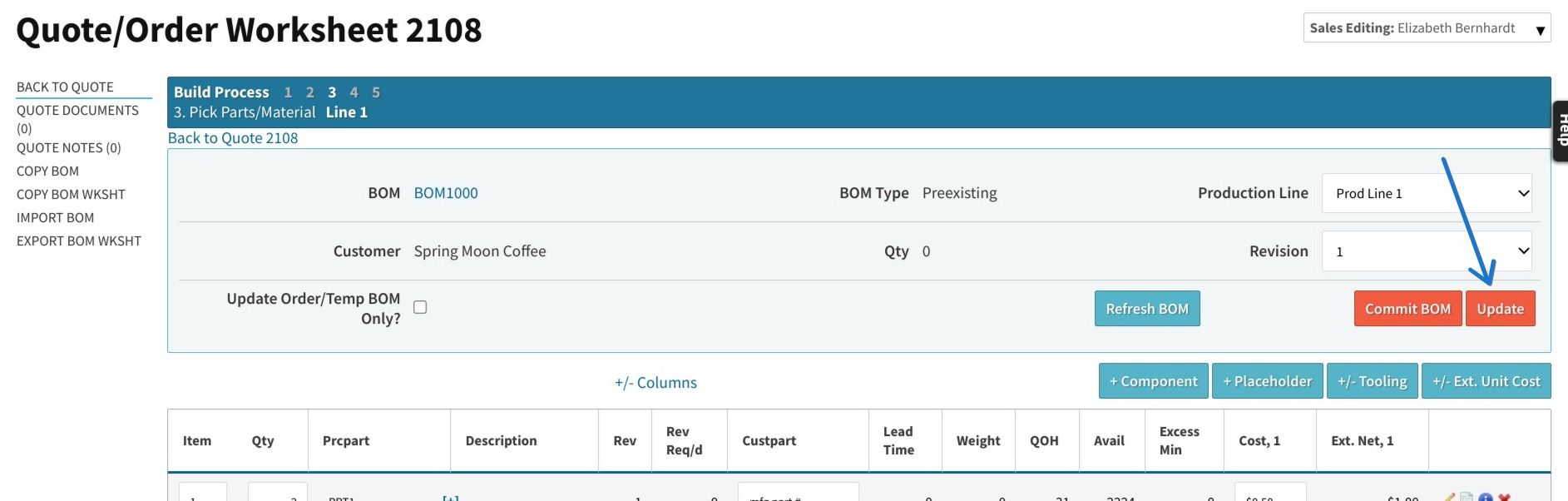
Update
Update saves your edits on the temporary BOM worksheet only. Use this when you want to preserve the current worksheet state while you continue working, without changing the permanent BOM yet.
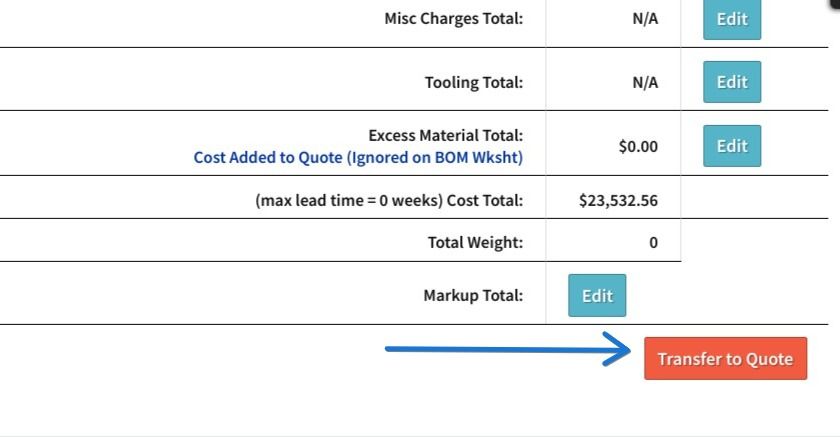
Transfer to Quote
Transfer to Quote pushes the temporary BOM worksheet data to the quote. Use this when the worksheet reflects what you want priced and quoted, even if you are not ready to commit those changes back to the permanent BOM.
How to Decide Which Button to Use
If you need the worksheet to match engineering before you start, use Refresh BOM. If you are mid-edit and just need to save the worksheet state, use Update. If the quote should reflect the worksheet for pricing, use Transfer to Quote. If the worksheet represents the new baseline BOM for future work, use Commit BOM.
The Other Buttons
Component & Row Actions
- Component: Adds a new BOM component line to the worksheet so a part can be entered and priced into the quote.
- Placeholder: Inserts a placeholder component row when the actual part is not yet known or is pending selection.
- +/- Tooling: Clicking +/- Tooling adds a line under each component listing the tools associated with the part number: asset number, part number, serial number, type, where it's stored and its description. If a component can use any tool from a group of interchangeable tools, it shows that group instead.
- +/- Ext. Unit Cost: Toggles the extended unit cost columns on and off so the user can view or hide the detailed spread of unit costs by qty break.
View & Display Controls
- Material Total: Shows the total material cost for the BOM quote based on the component parts and pricing in the worksheet.
- Procurement Charges: Displays additional procurement-related costs, such as supplier or handling charges, which may be rolled into the BOM or added to the quote depending on configuration
- Labor Total (based on operations): Displays the total labor cost calculated from the operations/estimate, usually based on the labor plan associated with the BOM.
- BOM Charges Total: Summarizes other miscellaneous charges assigned to the BOM quote.
- Tooling Total: Shows the total tooling cost associated with the BOM components or quote.
- Excess Material Total: Displays the cost associated with excess material requirements or overage conditions built into the quote.
- SG&A Total: Shows the SG&A overhead estimate used in pricing analysis; this is typically informational and not always transferred to the quote as a direct charge.
Key Takeaways
- Refresh BOM pulls the permanent BOM into the temporary worksheet.
- Update saves changes to the worksheet only.
- Transfer to Quote pushes worksheet changes onto the quote line for pricing and quoting.
- Commit BOM pushes worksheet changes back into the permanent BOM record.
Conclusion
BOM worksheets are a practical way to manage quote-line BOM edits without losing control of what is temporary versus permanent. When your team uses the four worksheet buttons intentionally, engineering records, quote pricing, and customer expectations stay aligned.
Related articles
