Sometimes a sales order needs to pause before it reaches picking and kitting. Common reasons include a customer request, a missing approval, a credit issue, or a manufacturing constraint that would create churn on the floor if the order moves forward.
In Cetec ERP, placing an order on hold is the clean way to prevent the order from progressing. Once the hold is active, the order is blocked from actions like picking parts, logging time, or moving through locations in the order plan until you remove the hold.
Open the Order and Enter Edit Mode
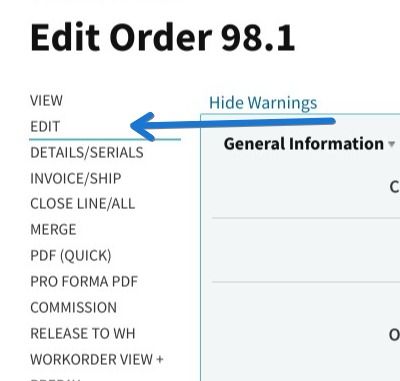
Navigate to the open order you want to pause. In the left-hand navigation, click Edit to open the order’s editable screens.
Place the Order on Hold
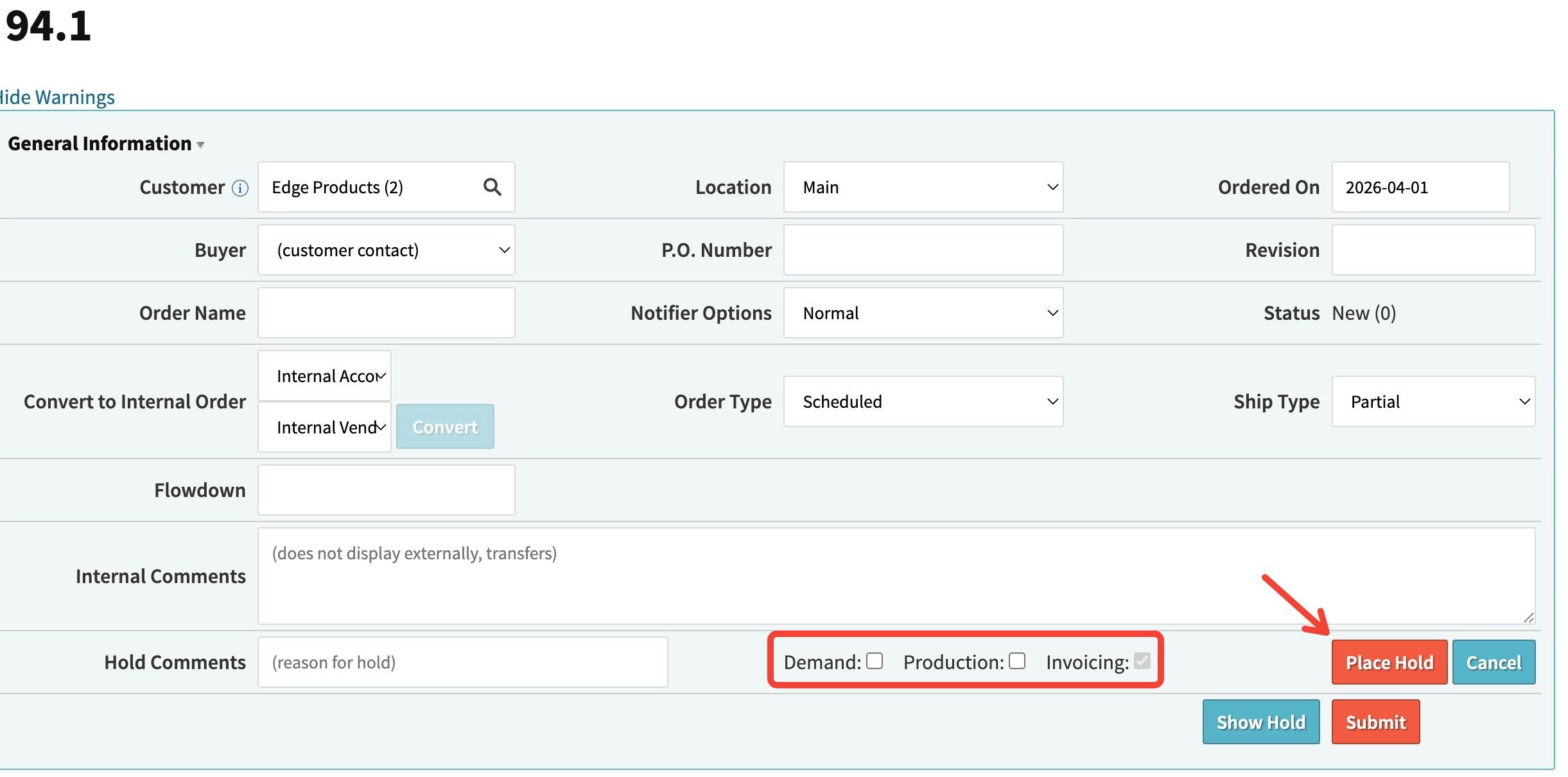
In the Header section of the order, click Show Hold. This will provide the different hold types available. Select the type, enter a clear reason so your team can understand why the order is paused, then confirm by clicking the red Place Hold button.Confirm the Hold Is Active.
After the hold is applied, Cetec ERP displays a notification and a warning on the order indicating that it is on hold, along with the hold comment and hold types.

What are the Order Types and What do They Prevent
There are 3 order types that can be placed on an order:
- Demand Hold: This prevents the order from being including in the MRP/allocation brain, and hides the order from waterfall.
- Production Hold: This prevents the order from being released, changing locations, or logging time (being worked on).
- Invoicing Hold: This prevents invoice/shipping, and is on by default, as it relates to customer credit hold rules.
How to Remove an Order Hold
When you are ready to release the order, return to the Header through the Edit menu and click Cancel Hold. The order can then proceed through your normal production and material processes.
Key Takeaways
- Use an order hold when you need to prevent purchasing, picking, kitting, or time entry from starting on a sales or work order.
- Apply the hold from the order Header in Edit mode and include a reason so the team has context.
- Remove the hold by returning to the Header and selecting Cancel Hold when the order is ready to move forward.
- Order holds are meant to stop progression cleanly, so downstream activity does not advance until you explicitly release it.
Conclusion
If a customer order needs to pause, placing it on hold in Cetec ERP keeps your production and material actions from getting ahead of the decision. Use the hold to stop progression, document the reason, and then cancel the hold when the order is ready to proceed.
Related articles
