
Okta SSO Setup
Documentation explaining how to configure Okta Single Sign-On (SSO) with Cetec ERP using OpenID Connect (OIDC).
May 21 2026
Steps to Create the Okta App Integration
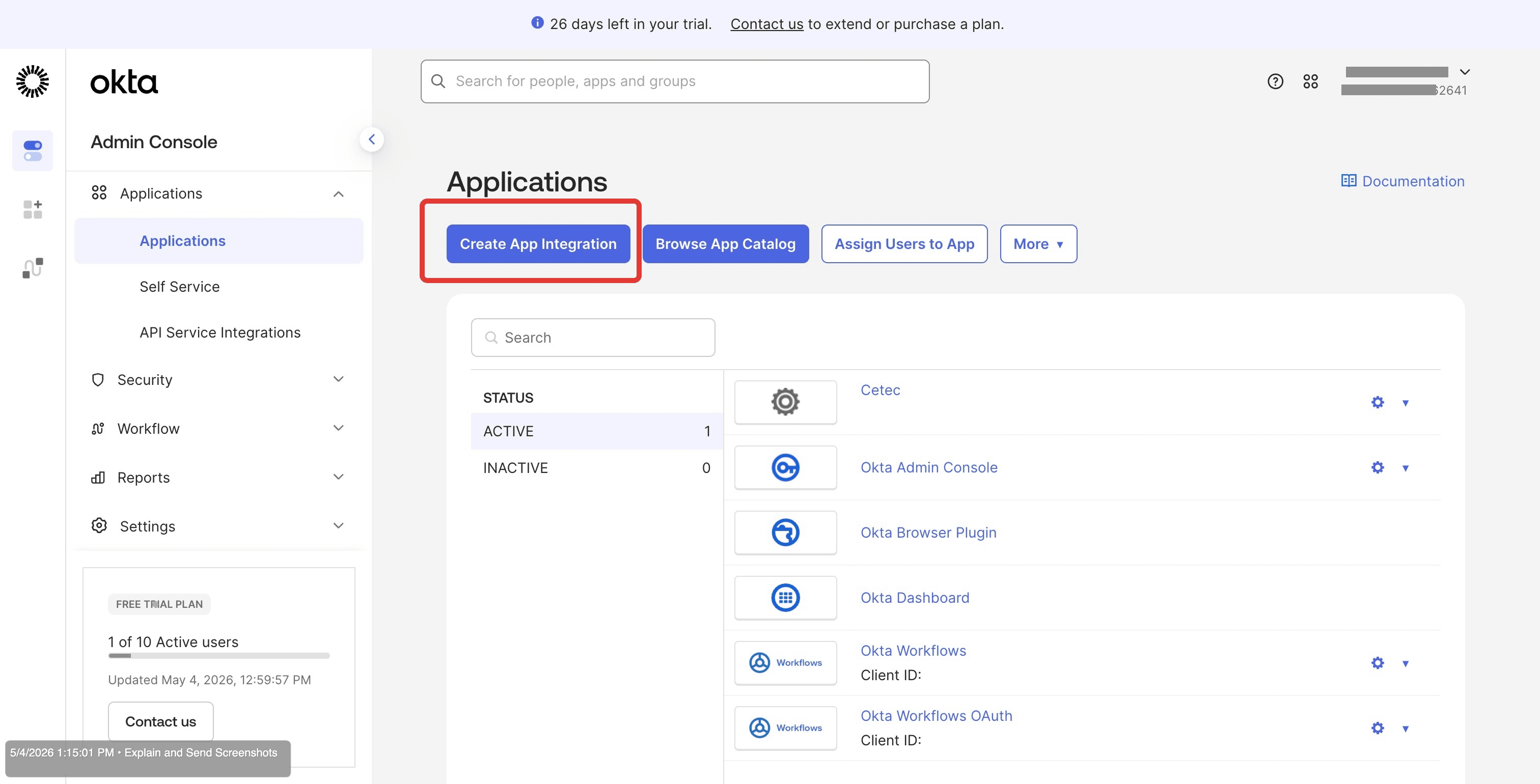
NAVIGATE TO APPLICATIONS
In the Okta Admin Console, navigate to: Applications → Applications
Click: Create App Integration
CHOOSE SIGN-IN METHOD AND APPLICATION TYPE
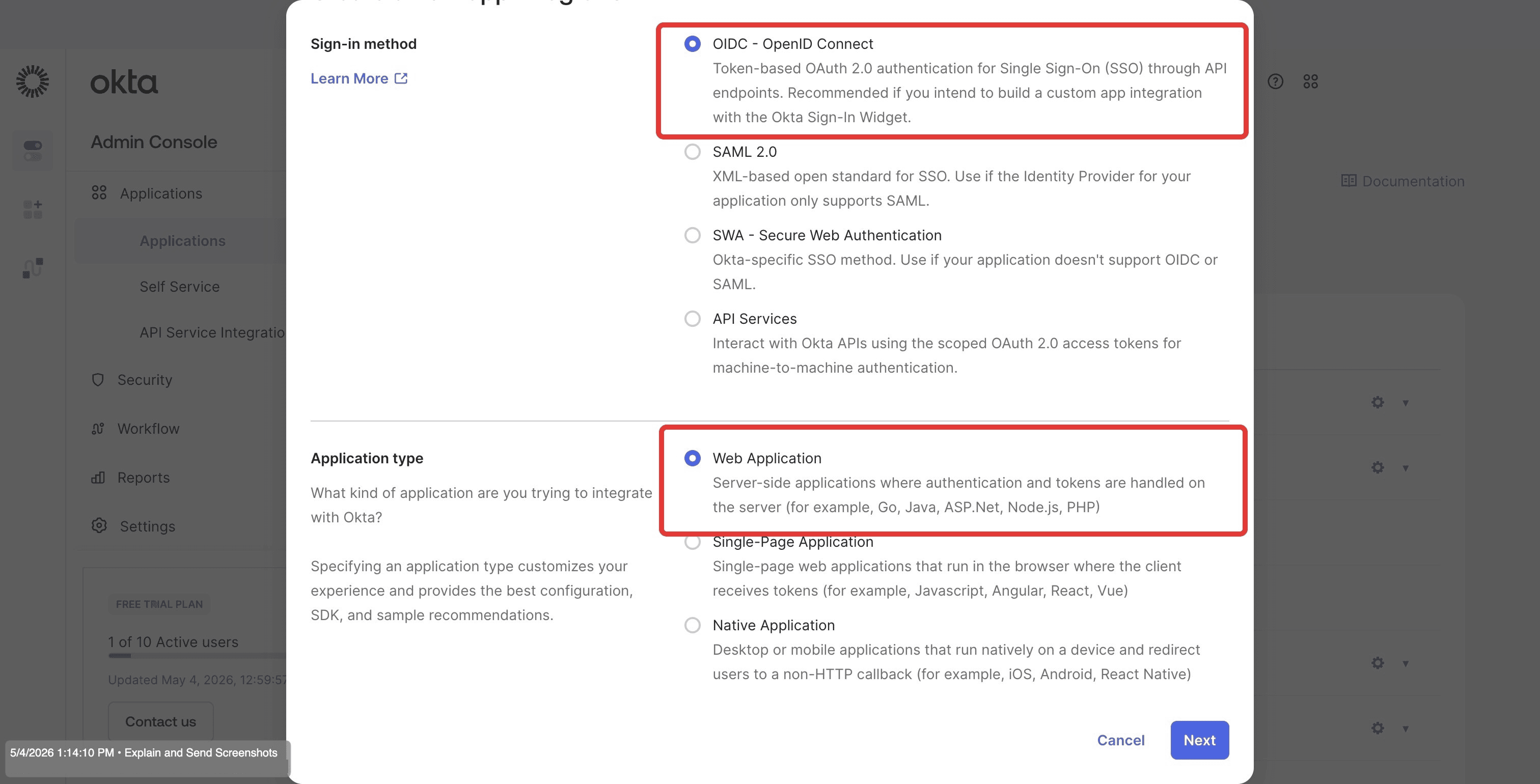
In the dialog that appears, select:
- Sign-in method: OIDC – OpenID Connect
- Application type: Web Application
Click Next.
NAME THE APPLICATION AND SET THE REDIRECT URI
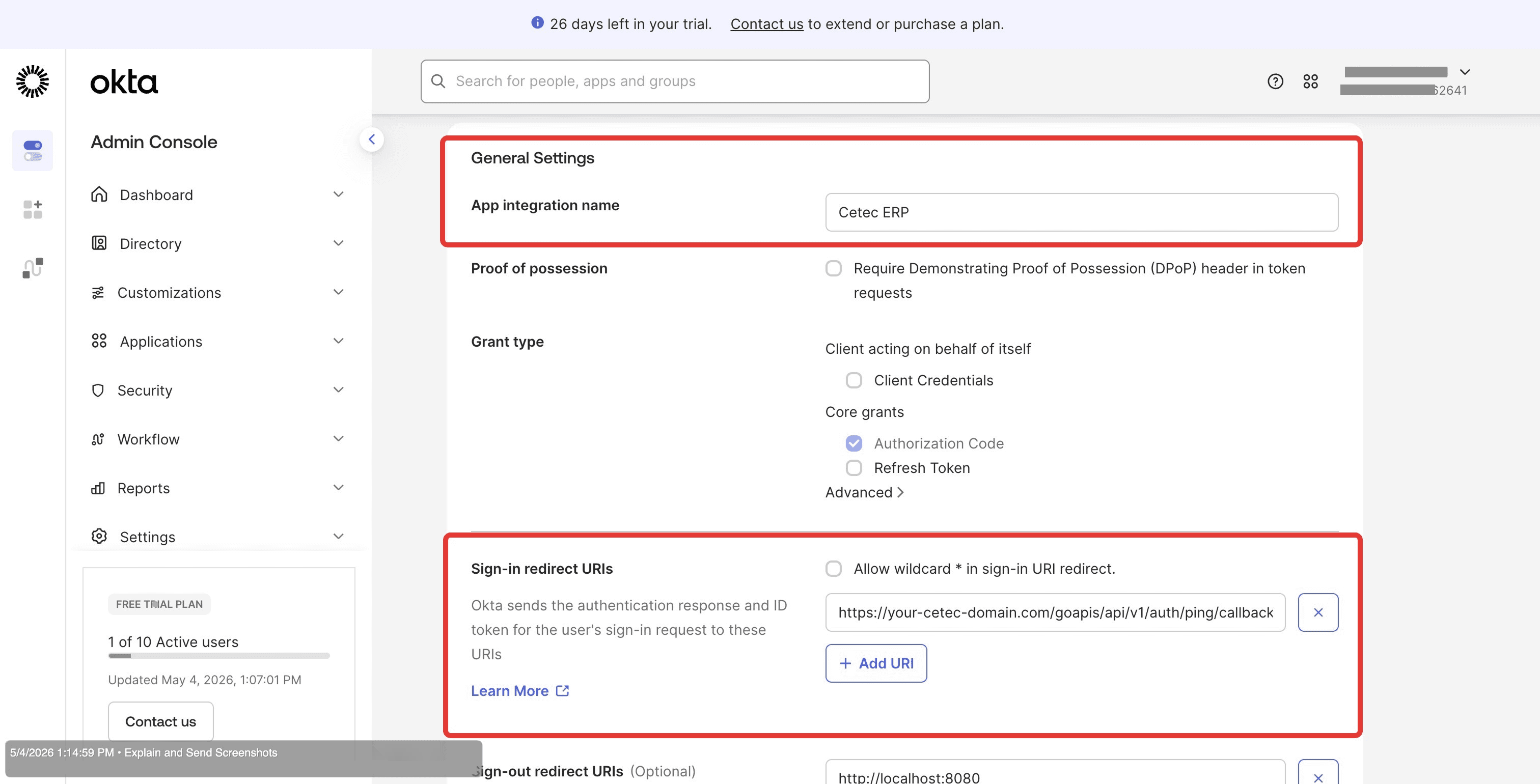
In General Settings, enter:
- App integration name: Cetec ERP
- Sign-in redirect URI: https://your-cetec-domain.com/goapis/api/v1/auth/ping/callback
Replace your-cetec-domain.com with your actual Cetec ERP domain.
Leave Client authentication set to: Client secret
Click Save.
COPY THE CLIENT ID
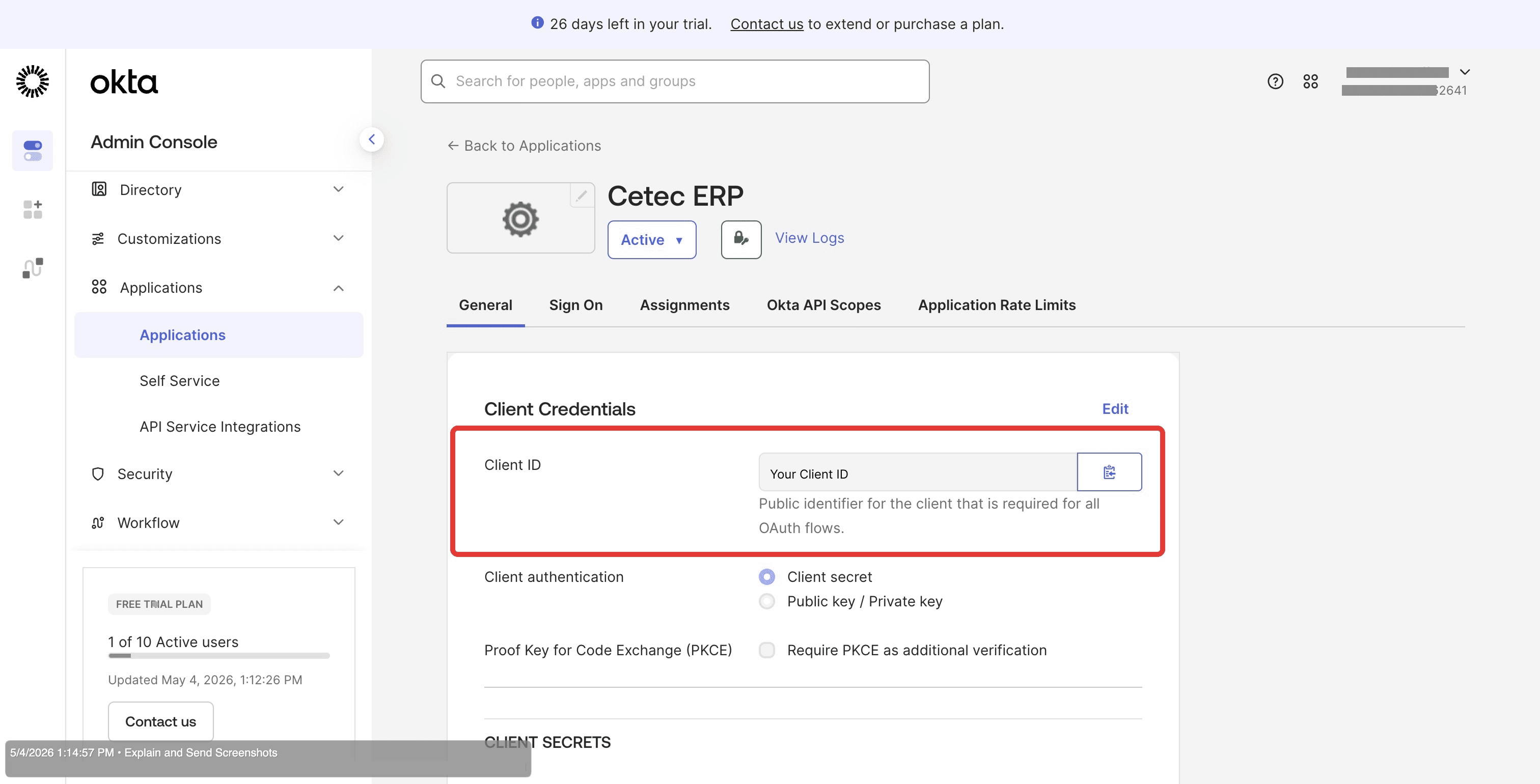
After saving, open the General tab
In the Client Credentials section, copy the Client ID
You will use this value later in Cetec ERP configuration.
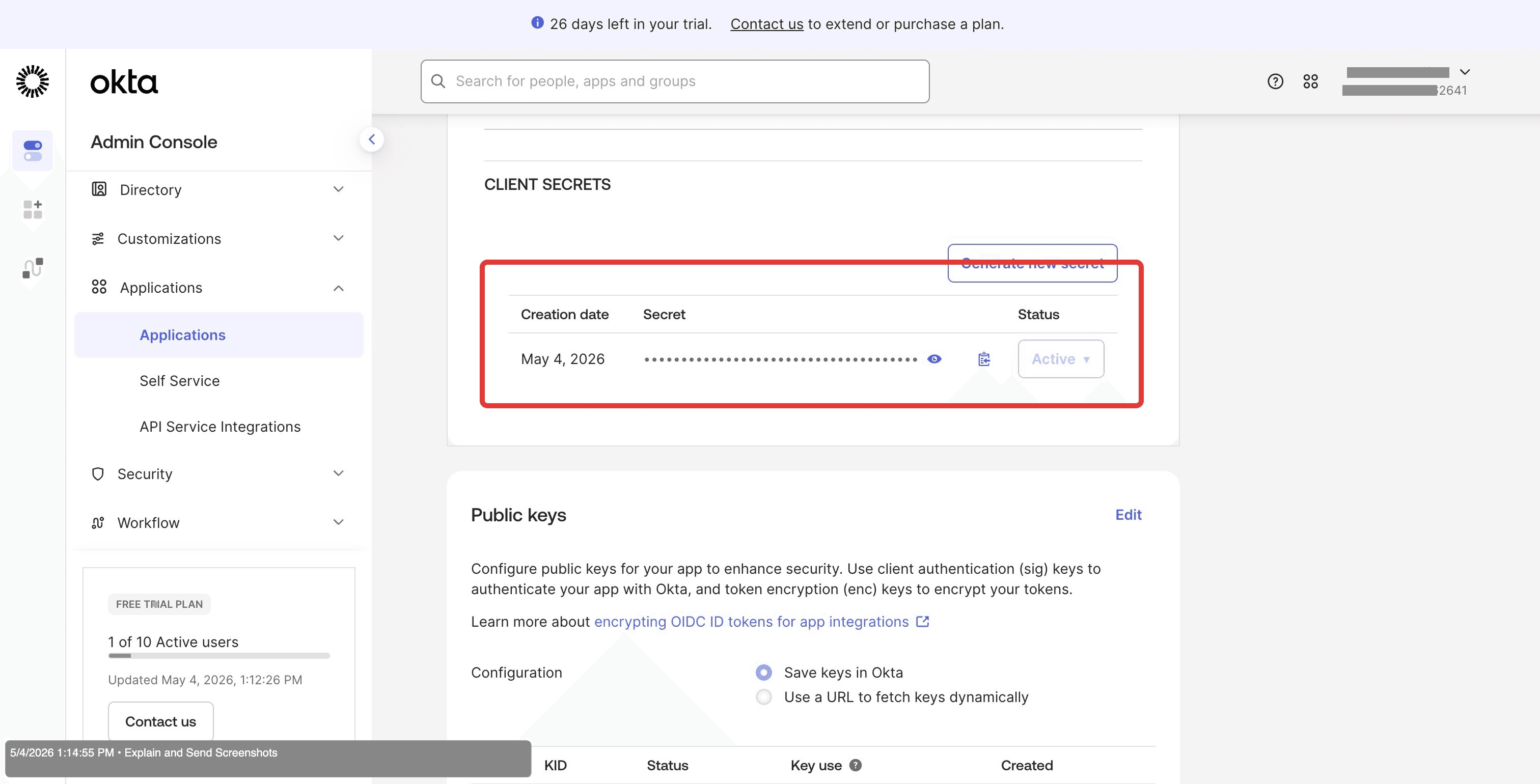
COPY THE CLIENT SECRET
Scroll to the Client Secrets section
Click the eye icon to reveal the secret.
Copy the Client Secret and store it securely.
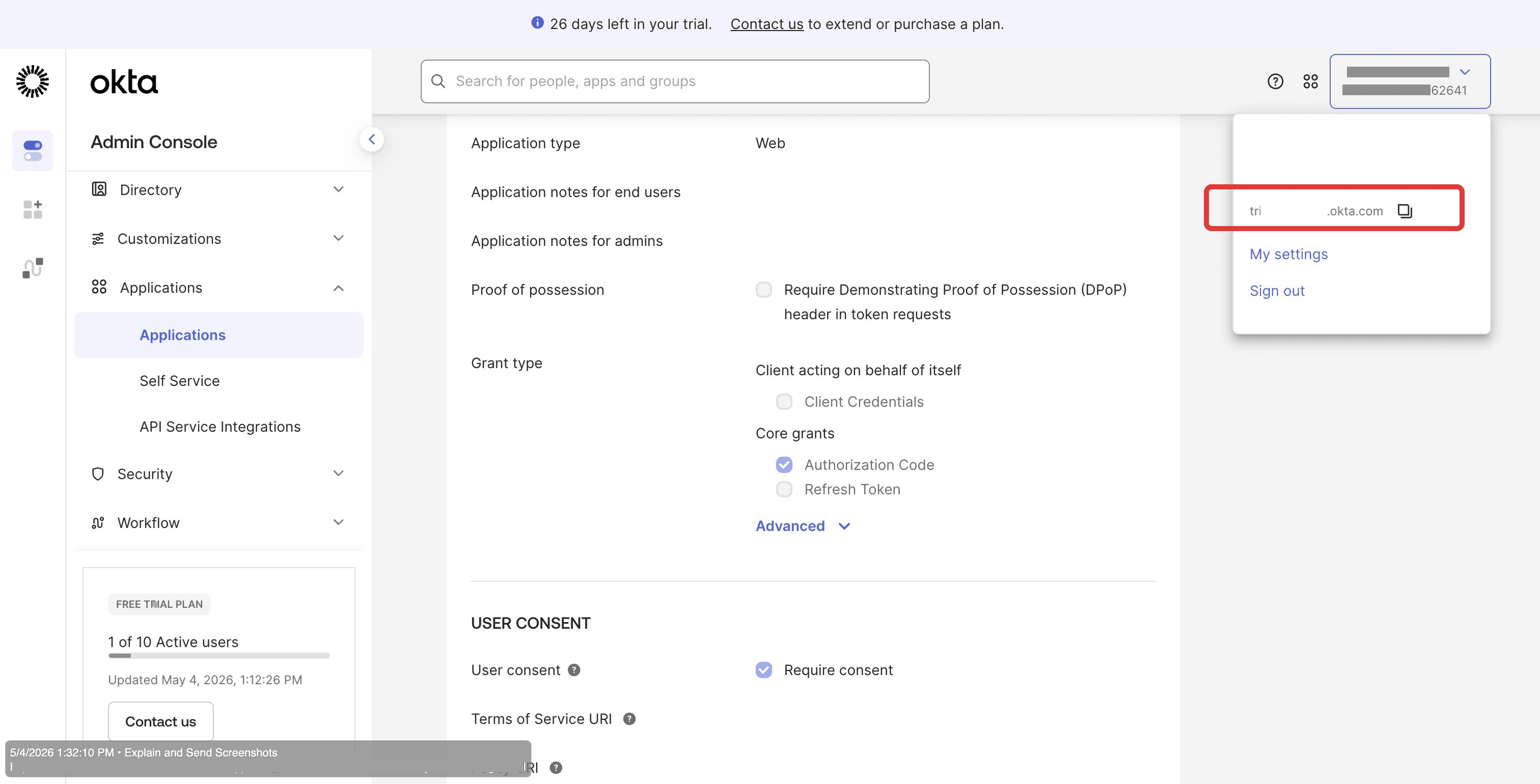
NOTE YOUR OKTA DOMAIN
Locate your Okta domain in the top-right account dropdown.
Example:
- trial-7262641.okta.com
This value will be used as the oidc_sso_environment_id
Configure Cetec ERP Settings
NAVIGATE TO CONFIG SETTINGS
- In Cetec ERP, navigate to Admin » Config Settings » Config Settings.
- Search for oidc
- Enter all required OIDC configuration values and save each setting.
CONFIGURE OIDC SETTINGS
- oidc_sso_provider = okta
- oidc_sso_environment_id = Your Okta domain
- Example: trial-7262641.okta.com
- oidc_sso_discovery_url = https://your-okta-domain.okta.com/oauth2/default/.well-known/openid-configuration
- oidc_sso_client_id = Your Client ID from Figure 4
- oidc_sso_client_secret = Your Client Secret from Figure 5
- oidc_sso_enforcement = 1 or 2
OIDC SSO ENFORCEMENT LEVELS
- 1 = SSO and local authentication both allowed
- Recommended for initial setup and testing.
- 2 = SSO only
- Local authentication disabled.
- Cetec ERP recommends starting with 1 to verify SSO is functioning correctly before enforcing SSO-only authentication.
Troubleshooting
REDIRECT URI MISMATCH
- The Sign-in redirect URI in Okta must exactly match the URL in Cetec ERP config settings.
- A trailing slash or protocol difference will cause login failures.
DISCOVERY URL FORMAT
- The oidc_sso_environment_id should contain only the Okta domain.
- Do not include: https://
- The discovery URL is a separate field and should contain the full URL.
USERS NOT ASSIGNED
- In Okta, open the Cetec ERP application.
- Navigate to: Assignments
- Assign users or groups to the application.
- Unassigned users will receive an authentication error during login.
ALL SIX SETTINGS REQUIRED
- If any of the six oidc_ settings are empty, SSO will not initialize.
- Confirm all values are saved before testing authentication.