
Cetec ERP 5.0 is coming, with beta release planned for mid to late October.
The release introduces a new generation of design patterns across Cetec ERP, beginning with upgraded reporting, redesigned list screens, updated navigation, and a new command palette.
Some of these changes will be immediately noticeable. Lists open differently. Filters and actions have moved. Several familiar pages on the Work Order screen are found in new places. The result is a more consistent interface that puts information in front of users sooner and gives them more control over how they review it.
We know that even a useful interface change can interrupt someone who knows exactly where to click today. This page gives your team an early look at what is changing, what is staying familiar, and the resources available before the beta release.
What Is Changing in Cetec ERP 5.0?
Cetec ERP 5.0 begins a broader interface update informed by customer interviews, usage data, support questions, and input from the consultants who work directly with manufacturers.
The release centers on upgraded reporting and new list screens. It also begins applying a common set of design patterns across the product so users do not have to relearn the interface every time they move from quoting to purchasing, production, inventory, quality, or accounting.
Users will begin seeing:
- Data displayed as soon as a list opens
- A cleaner, easier to use Filter bar across the top of the lsit
- Columns that can be shown, hidden, and rearranged
- Sorting, totals, page controls, and filtered exports
- Row and bulk actions that appear when they are needed
- Updated navigation on heavily used pages
- A command palette for reaching pages more directly
These changes affect how users find and review information. They do not replace the manufacturing processes already running through Cetec ERP.
List Screens Now Start With the Data
Many Cetec ERP lists currently open as search forms. Users enter search criteria, click Submit, and then review the results.
Converted lists in Cetec ERP 5.0 reverse that sequence. The records are already on screen when the page opens. Users start with the data and narrow it down from there.
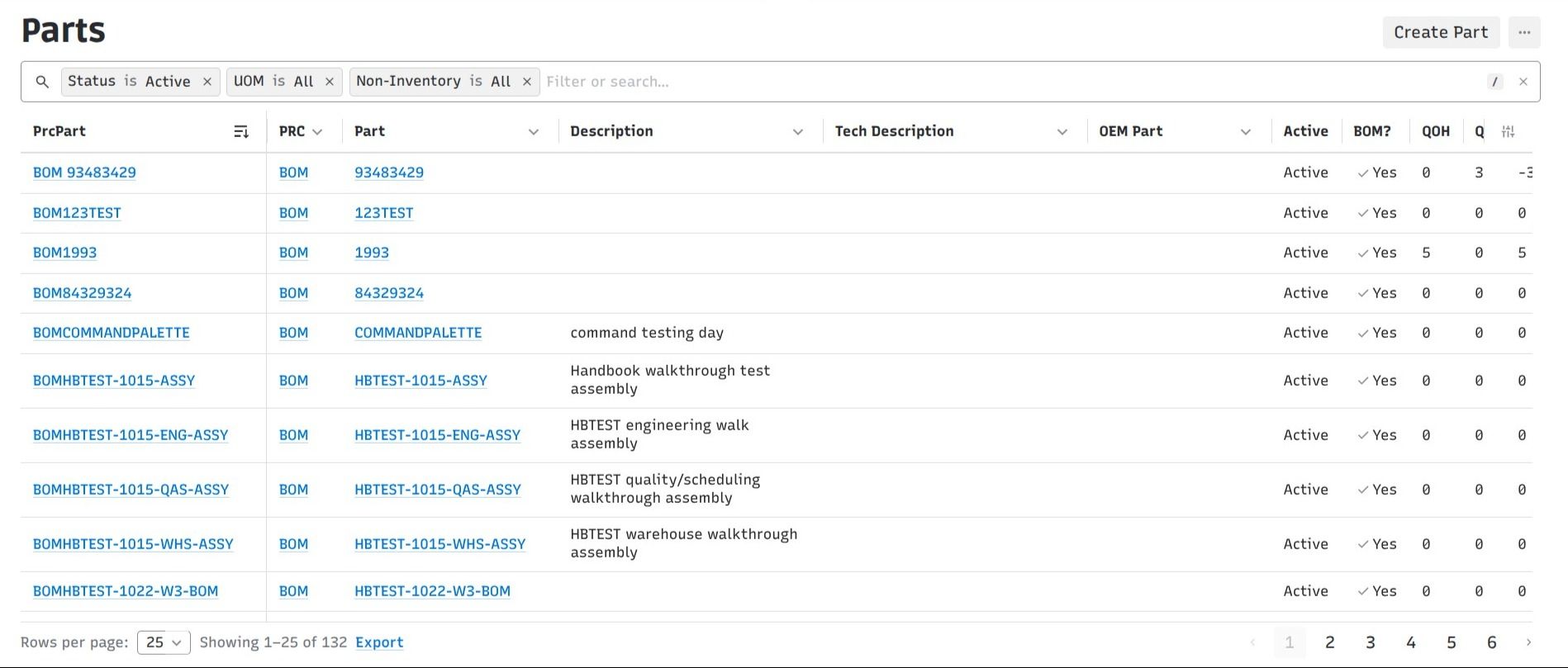
Converted lists open with records already visible instead of an empty search form.
Filtering will now exist within a Filter bar across the top of the list screen. Users can click into the search bar to see all filters, and type to search filters; then select the field to determine how to filter. Additional enhancements will follow to date filters. Then, Apply the changes to the list to render new results.
Active filters appear as chips within the bar. If a record appears to be missing, the first step is to check those chips. Removing a chip immediately removes that filter and reloads the list.
The new lists also give individual users more control over the table itself. Columns can be shown, hidden, or rearranged, and Cetec ERP remembers those choices. Wide lists can be reduced to the information a particular user or department needs without changing the underlying data.
Other additions include:
- Clickable column headings for sorting
- Totals beneath supported financial columns
- Adjustable page sizes, including an option to view all results
- Result counts above the table
- Row actions that appear when a user hovers over a record
- Bulk actions after multiple records are selected
- Exports that follow the current filters and sorting
- Shareable links that preserve the filtered view
The central idea is straightforward: make data easier to access, and quicker to view. Visit the list guide.
Work Order Tasks Stay Familiar, but Some Pages Have Moved
The Work Order screen received a major layout update in Cetec ERP 4.24. Cetec ERP 5.0 retains the primary work area while changing how several supporting pages are reached.
Starting a timer, opening a location, reading work instructions, moving an order, and reviewing progress continue to work as they do today. The most noticeable change is the navigation around that work.
The current row of seven tabs is reduced to two entries: View All Work and Order Info. The remaining pages move into the menu on the left.
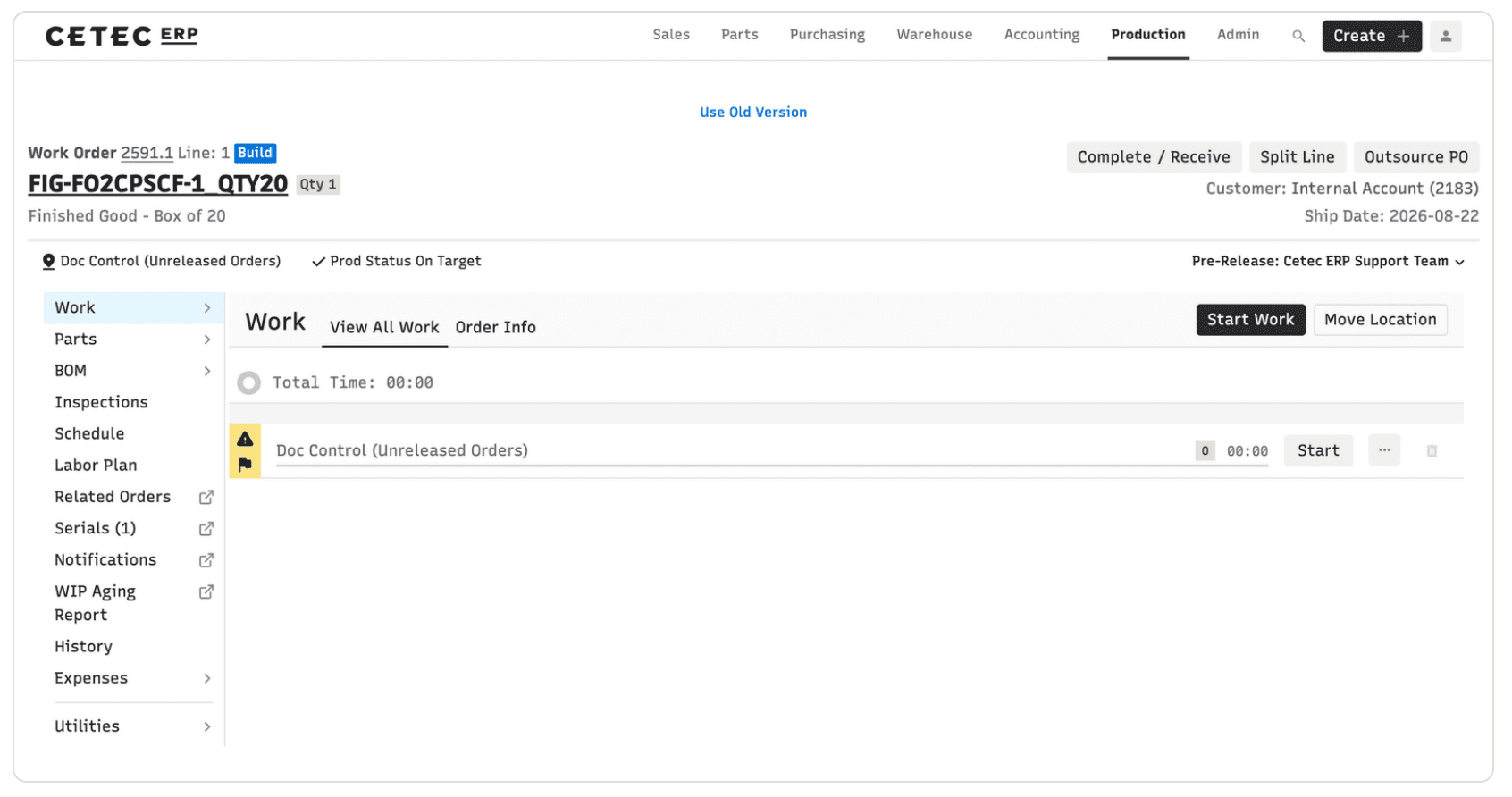
The 5.0 Work Order screen reduces the top tab row and moves supporting pages into the left menu.
Here is where several familiar pages are moving:
- Work becomes Work → View All Work
- Info becomes Work → Order Info
- Materials becomes Parts → View All Parts
- Documents moves to Utilities → Documents
- History becomes a direct sidebar link
- Schedule becomes a direct sidebar link on applicable orders
The Status screen remains available, but the current 5.0 layout does not include a direct sidebar link. Teams that use Status regularly should review the Work Order guide and bookmark the page before moving to 5.0.
A Use Old Version link will remain available at the top of the Work Order screen. If a user gets stuck in the middle of a job, they can return to the familiar version without losing their work. Visit the new work order guide.
Reach Pages Faster With the Command Palette
Cetec ERP 5.0 also introduces a command palette for moving through the system more directly.
The command palette gives users a central place to search for available pages and commands without working through multiple levels of navigation. It gives experienced users who already know where they need to go a shorter path to get there.
What Is Staying the Same?
The visual updates in Cetec ERP 5.0 do not change the underlying records or the full-suite structure connecting departments across Cetec ERP.
Your quotes, orders, parts, work locations, time records, documents, inventory transactions, quality records, and accounting data remain part of the same system of record.
On the Work Order screen, users will continue to:
- Expand locations to review work instructions
- Start and stop timers
- Add time and close work
- Move work between locations
- Review progress and estimated time
- Respond to short-parts and quality alerts
The interface is changing in places. The work itself remains familiar.
How to Prepare Your Team
The beta release is planned for mid to late October. You do not need to retrain every user at once, but a little preparation will prevent unnecessary hunting once the new interface arrives.
Start with the people who use Cetec ERP most heavily:
- Share the preview video with administrators, managers, and supervisors.
- Send the List Screen guide to users working regularly in quoting, purchasing, receiving, inventory, and accounting.
- Review the Work Order guide with production leads and users working from the Work Order screen throughout the day.
- Identify anyone who relies on the Work Order Status tab and help them bookmark the page.
- Remind users to check their active filters first if records appear to be missing from a converted list.
- Use the Use Old Version option when necessary during the transition, then document what the user was trying to find.
We are also updating relevant Cetec ERP how-to videos to reflect the 5.0 interface. New videos and release information will be added to this page as they become available.
Cetec ERP 5.0 Resources
Use these resources to introduce the release and prepare the users most affected by the changes.
Cetec ERP 5.0 Preview
Watch the release preview for an early look at the updated reporting, interface, and navigation.
List Screens in Cetec ERP 5.0
See how filters, columns, sorting, row actions, totals, and exports work on converted list screens.
Finding Things on the 5.0 Work Order Screen
See where familiar Work Order tabs and supporting pages are located in Cetec ERP 5.0.
More to Come
Cetec ERP 5.0 is expected to enter beta in mid to late October. We will continue adding updated how-to videos, release notes, and practical guidance as the release approaches.
Bookmark this page and share it with anyone responsible for managing, training, or supporting Cetec ERP users inside your company.
Questions about Cetec ERP 5.0 or how a change may affect your team? Contact Cetec ERP Support.